
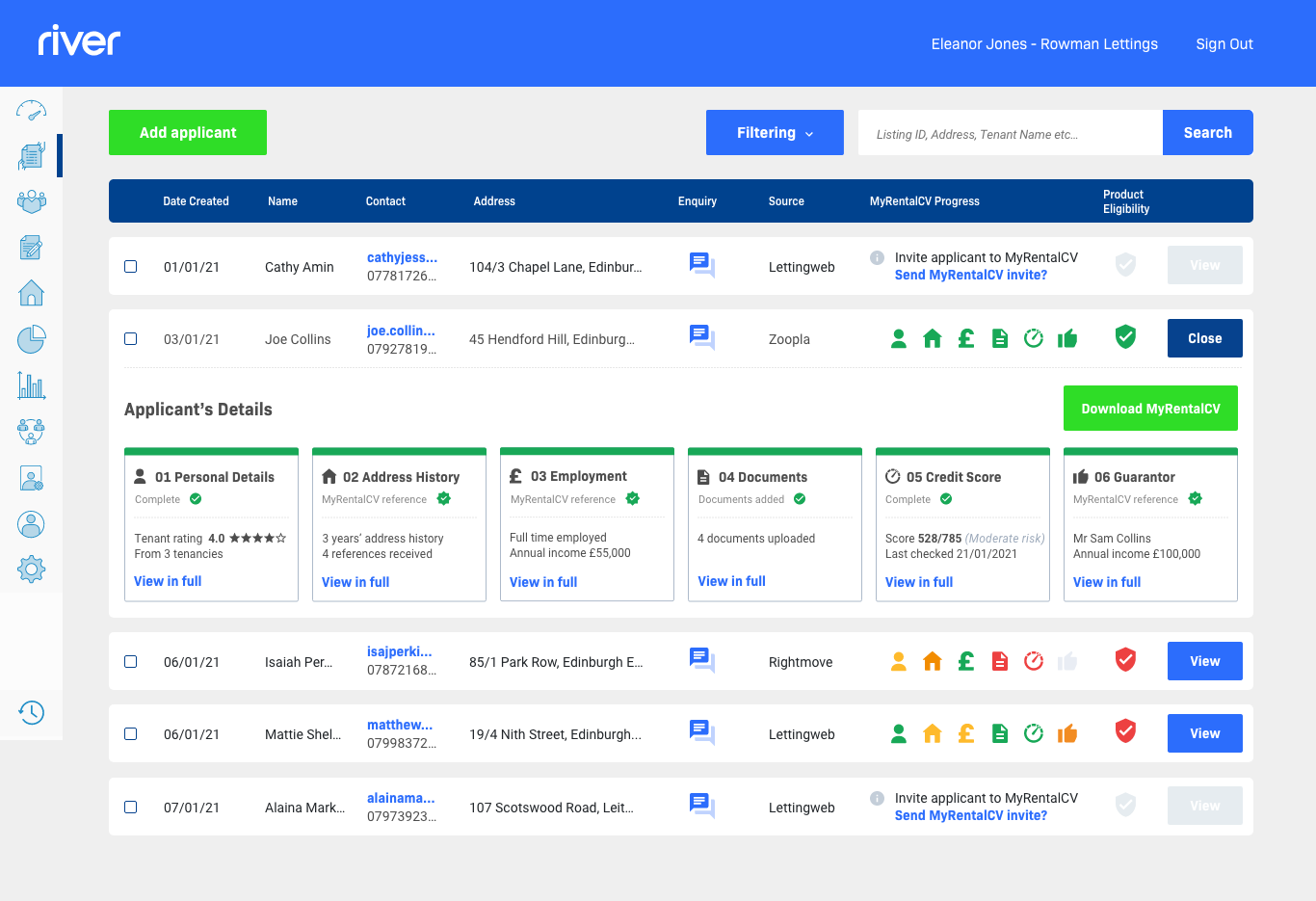
We have recently revamped our Enquiry Management Dashboard. This article will highlight each new feature and show you how to get the most out of your new dashboard.
Synchronisation with MyRentalCV
We have enhanced River's integration with MyRentalCV by creating a six-step process that aligns directly with the MyRentalCV platform. We've added a new step (Personal Details) and reordered the steps to reflect the exact process that your applicant will proceed through on the MyRentalCV website. This means that when you are liaising with applicants, you'll be on exactly the same page. The news steps in the process are as follows:
Personal Details > Address History > Employment > Documents > Credit Check > Guarantor
The new Personal Details section combines all of the information that was previously available in the 'Summary' and 'Move-In Details' sections (both of these sections have now been removed and replaced with the Personal Details section).
Intelligent Traffic Lighting System
An extra colour, yellow, has been added to the traffic lighting system, which means that you can differentiate between the different stages of applicant progress at a glance. Previously, the orange colour signified that a section was both incomplete and had a reference pending. Now, an orange icon signifies that a section is complete but pending a reference, a yellow icon signifies that the section is incomplete. The new colour coding system is detailed below.
- Green = Section fully complete. Note: because applicants can now attach a document to a specific section their MyRentalCV (see below), a section will now be marked as complete if the applicant has not received a MyRentalCV Verified reference but has instead uploaded a document which may support the details they have provided (such as a paper copy reference or a recent payslip/bank statement).
- Orange = Section is complete but awaiting one or more references. Note: You can view which additions are pending a reference by clicking "View in Full" underneath the relevant section.
- Yellow = Section is incomplete. This is because the applicant has not added all of the required information to their MyRentalCV. Currently, only Personal Details, Address History, and Employment sections can be yellow, and reasons for this could be:
- Personal Details = the applicant has not filled in all of the required information, or the applicant has not provided sufficient ID documents.
- Address History = the applicant has not provided 3 years' worth of address history, or the applicant has not sent a reference request to their letting agent/uploaded a paper copy reference.
- Employment = the applicant has not sent a reference request to their employer or uploaded a supporting document.
- Red = Not started
In-Depth Summary Blocks
When clicking the view button next to an applicant on your dashboard, the summary blocks underneath an applicant's profile now contain more detailed information, which means you won't have to click in to view their fully MyRentalCV so often. The blocks now contain the following information:
- Personal Details = average tenant rating
- Address History = how many years' address history an applicant has provided, and the number of references they have received
- Employment = their employment type and total annual income (if more than one income source this will be a combined total)
- Documents = how many documents the applicant has uploaded
- Credit Score = their credit score and the date it was last updated
- Guarantor = guarantor's full name and annual income
Enhanced Full MyRentalCV View and Supporting Documents
New information is now visible when clicking to view an applicant's full profile. This includes: the minimum and maximum they wish to spend on rent, National Insurance number, and rent amount for each of their previous addresses.
We have also added more detail to the Guarantor section. You will now be able to view a guarantor's relationship to the tenant, more detailed employment information, references, and supporting documents.
We have improved the way documents are uploaded to MyRentalCV. Supporting documents are now attached to a specific section of the MyRentalCV, and are accessible via a button located in the relevant section, making it easier to assess the strength of an applicant's profile. An applicant can upload ID documents in the Personal Details section, an agent or landlord reference next to the relevant address, or an income verification document next to their employment details, and this will reflect in the relevant section on River.
Comments
0 comments
Please sign in to leave a comment.