
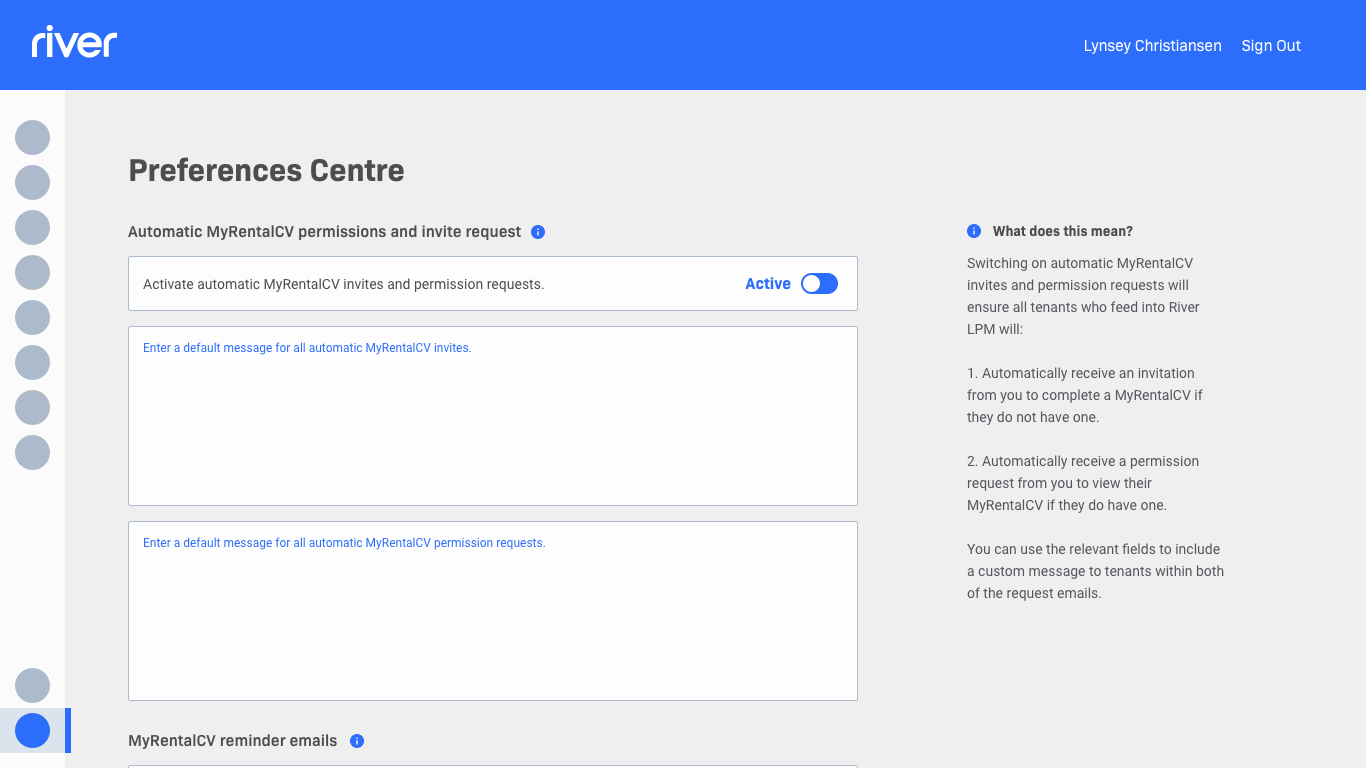
We have developed additional functionality in the River LPM Preferences centre, giving you more control over communications with your applicants. The updated Preferences centre allows you to tailor the communications sent from your agency via the River platform, provides you with increased visibility, and increases automation to save you time.
Accessing your Preferences centre
1. Login to your River LPM account.
2. Hover over the sidebar navigation on the left side of the page.
3. Scroll to the bottom and select Preferences.
What can you do?
Automated MyRentalCV invites and permission requests
Automated invite emails will now differ between automated invites and permission requests, with the ability to tailor the message included in each email. If this function is turned on, every applicant that drops into your River applicant management dashboard will receive an invite to sign up to MyRentalCV, or a permission request to view their MyRentalCV if they already have one. This function will save you time by eliminating the manual invite and permission request process.
Automated MyRentalCV reminder emails
If this function is switched on, applicants who have been invited to create a MyRentalCV will receive reminder emails to start the process if they haven't already done so. Your applicants will receive an initial invite email, and will receive an additional two reminder emails 24 hours apart if they have not yet signed up to the platform. This will be reflected on the invite count next to the respective applicant in your enquiry management dashboard. This will save you time chasing up applicants and increase your number of sign ups, improving your chances of finding a suitable tenant.
MyRentalCV Communications - Blind Carbon Copy
If this function is turned on, your default email address will be copied into all MyRentalCV communications that are sent to your applicants and prospective tenants via River. This will give you full visibility of all emails received by your applicants and allow you to keep on top of your applicant progress. If you would like to change your default email address, please contact our support team on 0131 297 0210 or email support@lettechsolutions.com.
Activating your new Preferences
1. Click the Active/Inactive toggle on the right side of each preference setting to alter your preferences.
2. A default message will appear in the Automatic MyRentalCV permissions and invite request section, which can be changed at any time by editing the text in each text field.
3. Remember to scroll to the bottom and click Save Preferences after making any changes.
Comments
0 comments
Please sign in to leave a comment.