
The Lease Builder Configuration tool will allow you to edit all your standard lease information and add signees. This guide will take you through the different components of lease builder configuration.
Accessing the Lease Builder Configuration
Login to River and access the Lease Builder page. Click the Lease Builder Configuration button in the upper right corner.
Your Document Manager
The document manager is where your lease templates are stored. In Scotland, this document is the Scottish Letting Professionals Model Tenancy.
Agent Signees
- This is where all of the agents who are eligible to sign a lease on behalf of the landlord can be managed.
- If you would like to add an agent signee, click the Add Agent Signee button in the upper right corner of the page, input the signees details, and click Add Agent Signee.

- To activate or deactivate an agent’s ability to sign a lease, simply click the Active toggle next to a particular agent’s details.

Configure Lease Builder
- To edit your standard lease information, click Configure Lease Builder at the top of the page.

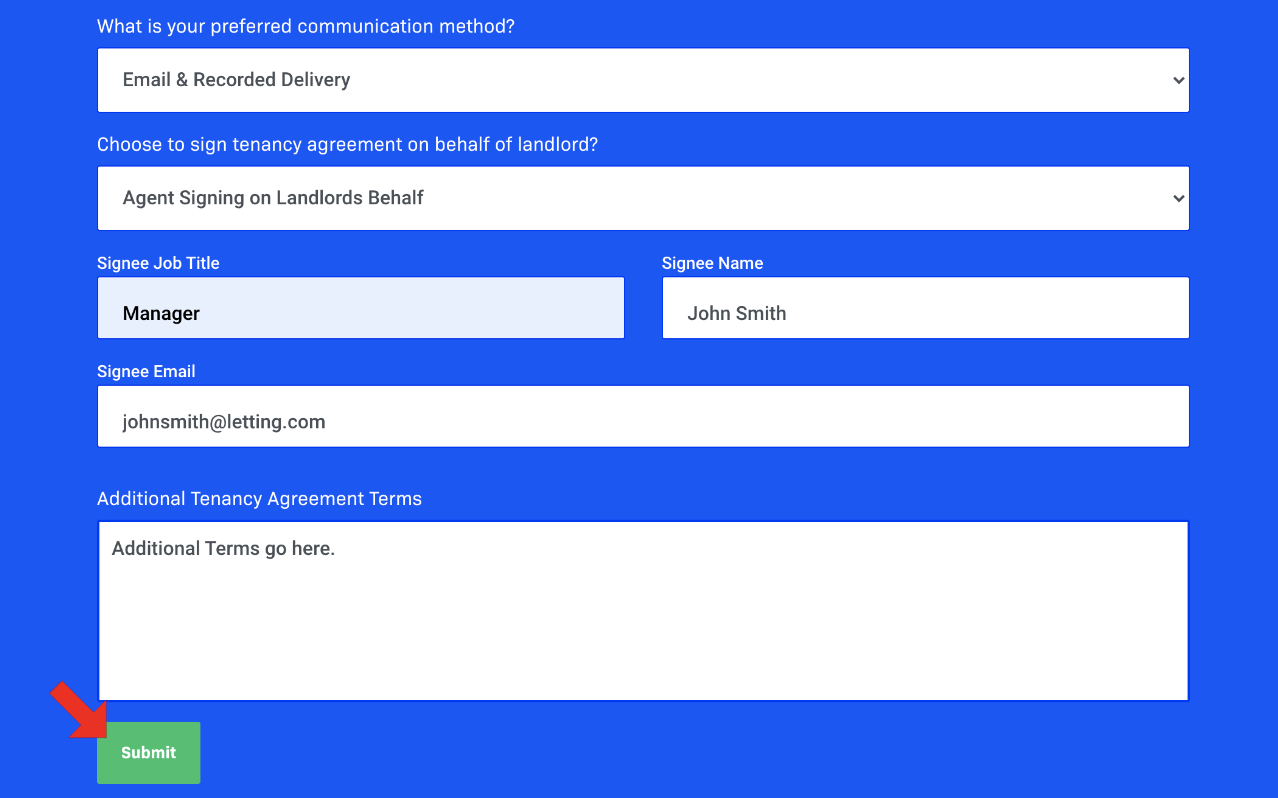
- Here, you can input a number of preferences and information for your lease:
- Your Deposit Scheme
- Your Deposit Scheme reference number
- Select your preferred lease communication method
- Select whether the landlord will sign the lease or an agent will sign on behalf of a landlord. You do not need to enter any agent information at this stage if different agents will be signing multiple different leases.
- Add any additional tenancy agreement terms that are specific to your letting agency and that you would like to appear on the lease.
- Click Submit once you have entered all of the required information, and this will now pull through to any lease you build going forward.
Comments
0 comments
Please sign in to leave a comment.