
Once you have grouped your applicants together and created a tenancy, you are ready to start building a lease. You have two options when creating a lease:
- You can build a lease from an existing property, which will populate the lease with the property and tenant information you have already collected. Keep reading to find out how to do this.
- You can build a new lease from scratch, and you will have to populate the information yourself. If you'd like to learn how to do this, click here.
How to build a lease from an existing property
Accessing the Lease Builder
- When you login to your River account, click Lease Builder.
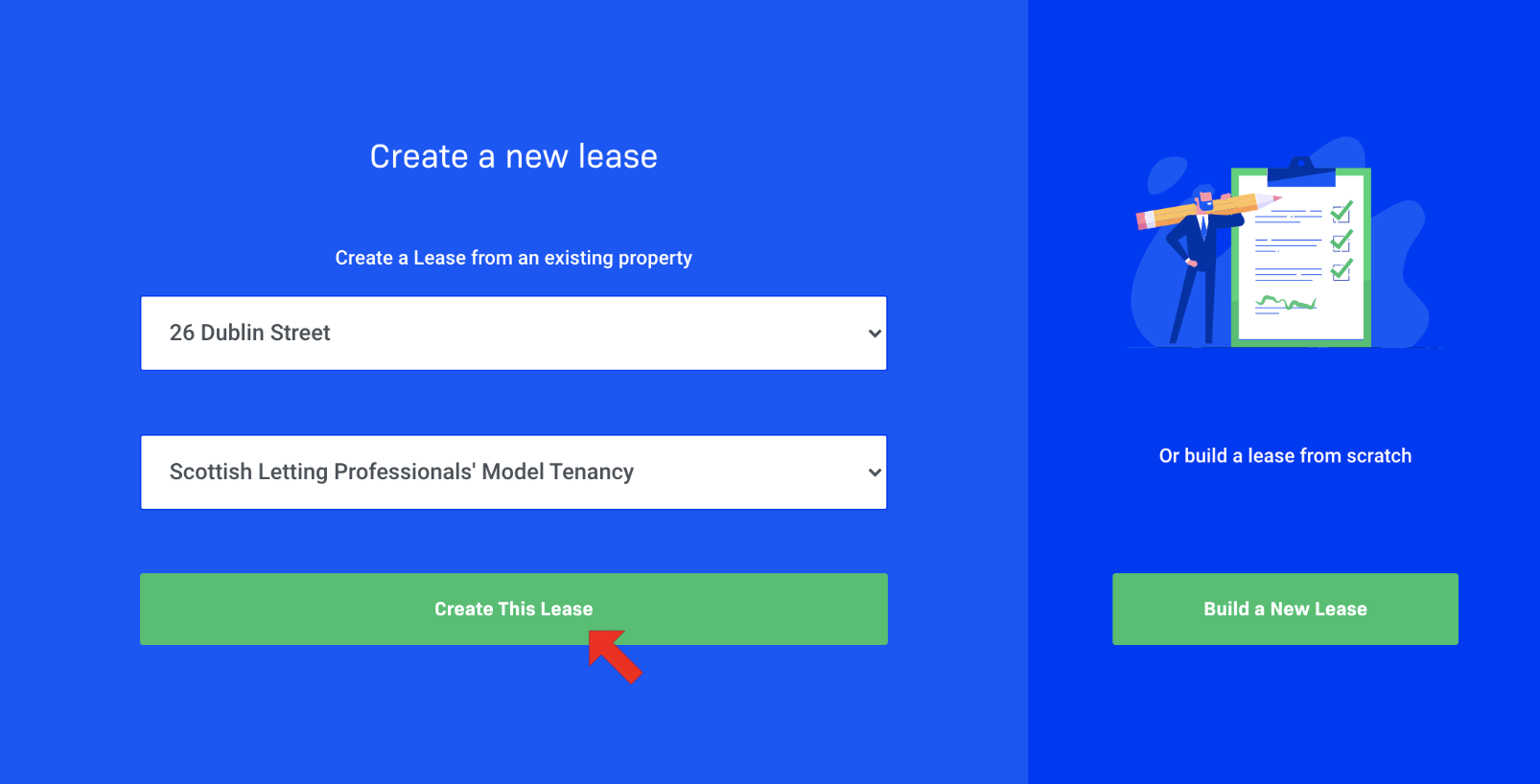
- Click the Build Lease button in the upper left hand corner. A modal should appear prompting you to create a new lease.
- On the left hand side of the modal, select the property that you would like to build a lease for, and select the lease template you would like to build on. Click Create This Lease.
Section 1: Property Details
- Check that the information that has pre-populated Sections 1.1 and 1.2 is correct.
- Scroll to Section 1.3 and click Yes next to the respective row if you would like to note any additional extras on the lease. This could be something that is included or excluded from the property, such as parking or a communal garden.
- Scroll to Section 1.4 and click Yes if you would like to add any property specific terms.
- Click Save Property Details and scroll to the Tenants section.
Section 2: Tenants
- Check that the tenant information that has pre-populated Section 2.1 is correct.
- To check a specific tenant’s details, click the pencil icon.
- To delete a tenant altogether, click the trash icon.
- You can add any further tenants in section 2.2 by populating their details and clicking the Add Tenant button.
- Scroll to the Landlord Details Section.
Section 3: Landlord Details
- Check that the landlord details in Section 3.1 are correct by clicking the pencil icon. Here you can also add the landlord registration number and a contact number. Click Edit Landlord Details to save this.
- If you’d like to delete the landlord, click the trash icon.
- You can add a new landlord in section 3.2 by populating their details and clicking the Add Landlord button.
- In Section 3.3, select from the drop down which agent will sign the lease on behalf of the landlord.
- Scroll to the Rent & Deposit section.
Section 4: Rent and Deposit
- Check that the rent information that has pre populated Section 4.1 is correct, and make any edits necessary
- Select a payment date, and click Save Rent Details.
- Check that the deposit information that has pre-populated Section 4.2 is correct, and edit if necessary.
- Click Save Deposit Details.
- Scroll to the Guarantor section.
Section 5: Guarantor
- Click Show Guarantor Section to check any guarantor details.
- Check that their contact information is correct by clicking the pencil icon.
- If you’d like to edit this information, simply input and click Edit guarantor details.
- If you’d like to delete a guarantor, click the trash icon.
- If you’d like to add a new guarantor, scroll to Add New Guarantor to the Lease, input their details, and click the Add Guarantor button.
- Scroll to the bottom of the lease.
Sending the Lease
- Before sending your lease, click the Download Preview button to check it over before sending the final document.
- When you are ready to send your lease, click Send Final Document. This will send the lease via DocuSign to your nominated agent and the tenant.

Comments
0 comments
Please sign in to leave a comment.