
If you do not have automated MyRentalCV invites enabled, and did not invite an applicant to create a MyRentalCV when manually adding them to River, simply navigate to the applicant you would like to invite, find the MyRentalCV Progress column, and click Send MyRentalCV invite.
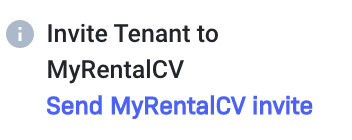
A modal will appear, prompting you to enter a message and send an invite. Enter your message, and click Send MyRentalCV Invite. Alternatively, you can enter a default message in your Preferences centre that will pre-populate this field for you.
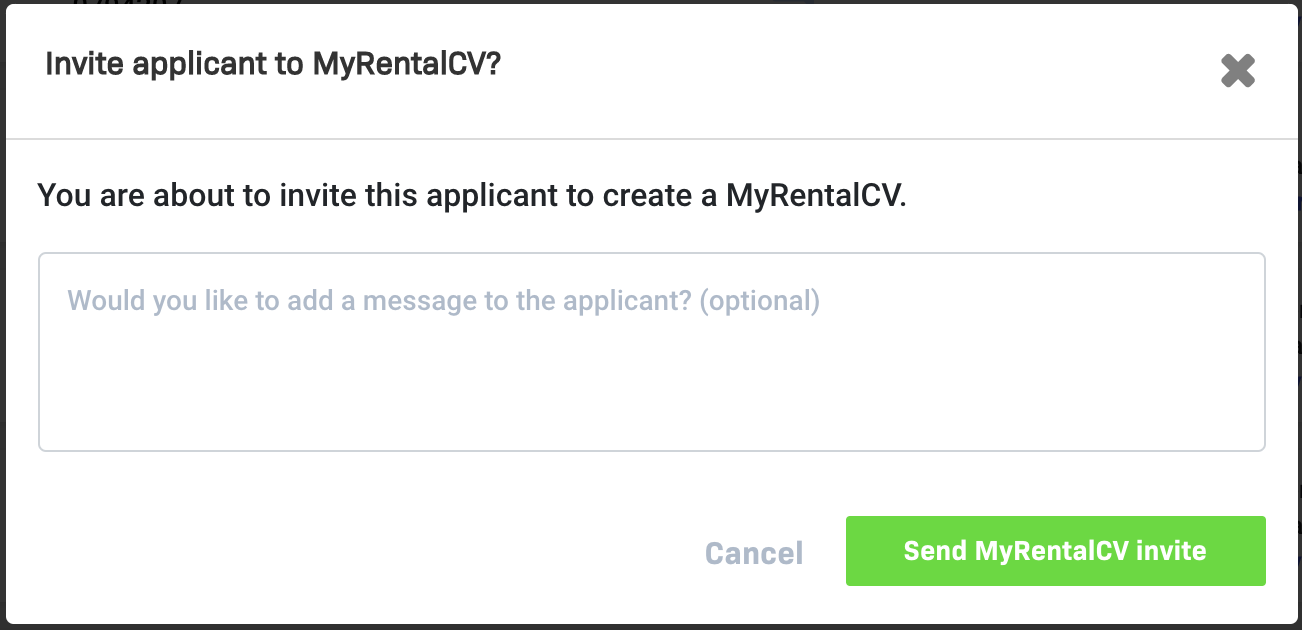
This will generate an invite to the applicant, asking them to sign up to MyRentalCV.
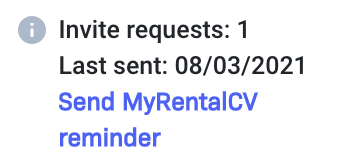
The MyRentalCV Progress column will now display a link to send a reminder to the applicant, along with the number of times you have invited/reminded the applicant, and the date you last sent an invite/reminder. Please note that you can only send a reminder once every 24 hours.
Once the applicant has signed up, you will be able to view the status of their MyRentalCV and their details.
Comments
0 comments
Please sign in to leave a comment.