
If someone has applied for one of your properties from a source other than a property portal, such as a phone call into your office or a referral from an existing tenant, you will need to add them manually to your applicant management dashboard.
To add an applicant manually
1. Log into your River account and click Applicants, then click the green Add Applicant button in the upper left corner of the screen.

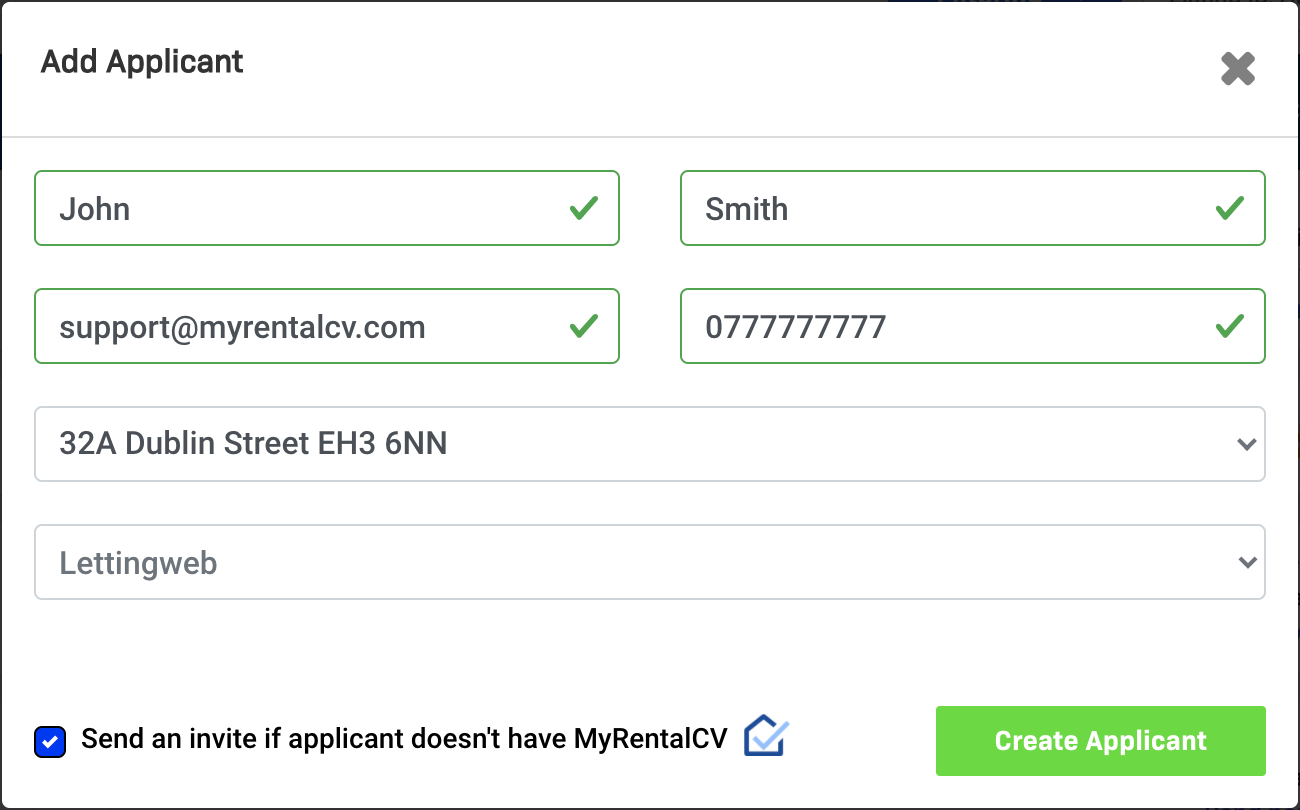
2. Here, you can add an applicant for a property. You will need their name, email, phone number, enquiry source and property address they are enquiring for.
3. Tick/untick the box depending on whether you would like to invite them to create a MyRentalCV.
4. Click the Create Applicant button. This will add the applicant to your applicant management dashboard.
5. If you would like to find out how to invite an applicant to create a MyRentalCV if you did not invite during the applicant creation process, please click here.
Comments
0 comments
Please sign in to leave a comment.